
100+ Technical Triage Articles. Searchable. Categorized. Built From Real Operations.
Our internal engineering knowledge base, made searchable. Every article includes symptoms, resolution summary, and step-by-step procedures used by IT Vortex engineers in production support.
Users receive a connection failed message after selecting an assigned desktop pool.
Restore broker, network, and entitlement alignment so the desktop launches normally.
- 1Confirm the user is entitled to the pool
- 2Verify the Connection Server URL and certificate trust
- 3Check Unified Access Gateway or load balancer health
- 4Confirm required ports are allowed between client, gateway, broker, and agent
- 5Review Horizon event logs and retry the launch
Authentication succeeds but the session opens to a black screen or disconnects shortly after launch.
Correct display protocol, agent, and graphics settings causing the session initialization failure.
- 1Ask whether the issue affects one user, one pool, or all pools
- 2Restart the Horizon Agent services on an affected VM
- 3Confirm VMware Blast or PCoIP ports are reachable
- 4Update or reinstall Horizon Agent if it is damaged
- 5Review display driver, GPU, and pool snapshot compatibility
Desktop assignment remains in preparing state and users cannot start a session.
Clear the blocked provisioning state and remediate the pool image or customization issue.
- 1Check pool inventory for VMs stuck customizing or provisioning
- 2Verify the golden image snapshot is available
- 3Confirm domain join credentials and OU permissions
- 4Restart provisioning for the affected machines
- 5Recompose or republish the pool after correcting image issues
User signs in but receives a temporary profile or missing settings in the virtual desktop.
Repair profile container access and remove stale locks that prevent normal profile loading.
- 1Verify profile share permissions for the affected user
- 2Check FSLogix or profile container attach logs
- 3Look for stale VHD/VHDX locks on the file server
- 4Confirm the desktop can resolve and reach the profile path
- 5Detach stale sessions and have the user sign in again
Local USB device does not appear inside the virtual desktop.
Enable supported USB redirection policy and confirm the client, agent, and device class support it.
- 1Confirm USB redirection is enabled in Horizon policy
- 2Check whether the device class is blocked by policy
- 3Verify Horizon Client has USB components installed
- 4Test from another endpoint to isolate client-side driver issues
- 5Reconnect the USB device after restarting the session
Local printers are not available or default printer is incorrect in a Horizon desktop.
Restore printer mapping by correcting client settings, agent services, and printer policy.
- 1Confirm printer redirection is allowed for the pool
- 2Verify the printer is installed and working on the endpoint
- 3Restart the VMware Integrated Printing service
- 4Remove duplicate or stale redirected printers
- 5Reconnect the session and test printing a small document
Published app opens briefly and closes without an obvious error.
Resolve application path, RDS host capacity, or user profile conflicts preventing the app from staying open.
- 1Check the application executable path in the farm
- 2Review RDS host event logs for application crashes
- 3Confirm the user has permissions to run the app
- 4Test with a clean profile or alternate RDS host
- 5Drain and reboot unhealthy hosts if multiple users are affected
Entitled user sees no desktops or receives a message that no machines are available.
Return capacity to the pool or correct assignment rules so the user receives a desktop.
- 1Confirm pool entitlement and assignment type
- 2Check available machine count and powered-on state
- 3Verify max sessions and naming pattern capacity
- 4Inspect maintenance mode on desktops or hosts
- 5Power on or provision additional desktops as needed
Microphone or speakers do not appear in the session or audio quality is poor.
Correct audio redirection policy and endpoint device selection.
- 1Confirm audio redirection is enabled for the pool
- 2Set the correct default audio device on the endpoint
- 3Reconnect the Horizon session after device changes
- 4Test with Blast Extreme and review bandwidth conditions
- 5Update Horizon Client if audio redirection components are outdated
Sessions disconnect sooner than expected even while users expect to remain connected.
Align idle timeout settings across Horizon, gateways, load balancers, and Windows policies.
- 1Check global session timeout settings in Horizon Console
- 2Review Unified Access Gateway and load balancer idle timeout values
- 3Confirm Windows lock and RDS session policies
- 4Look for endpoint sleep or network roaming events
- 5Adjust the shortest timeout or document the intended behavior
Domain join fails with credential, DNS, or domain controller errors.
Correct DNS and domain reachability, then retry the join with valid delegated credentials.
- 1Verify the PC uses internal DNS servers
- 2Ping and resolve the domain FQDN
- 3Check time sync against the domain
- 4Confirm the account can join computers to the target OU
- 5Remove stale computer objects if needed and retry domain join
Device asks for a BitLocker recovery key after firmware, boot, or hardware changes.
Identify the trigger, recover the device, and reseal BitLocker to the current trusted platform state.
- 1Retrieve the recovery key from the approved directory or management portal
- 2Confirm Secure Boot and TPM are enabled
- 3Suspend BitLocker before planned firmware changes
- 4Resume protection after the device boots normally
- 5Document the event and confirm the key escrow is current
Windows Update repeatedly fails, rolls back, or shows a download/install error.
Reset update components and remove blockers so cumulative updates install cleanly.
- 1Confirm free disk space and stable network access
- 2Run Windows Update troubleshooter
- 3Clear SoftwareDistribution and Catroot2 only after stopping update services
- 4Run DISM and SFC health checks
- 5Install the update again or use the Microsoft Update Catalog package
Mapped network drive shows disconnected or asks for credentials after sign-in.
Correct drive mapping policy, credentials, and network timing at logon.
- 1Verify the file share is reachable by UNC path
- 2Confirm user permissions on share and NTFS
- 3Review Group Policy drive mapping scope
- 4Enable wait-for-network behavior if logon timing is the cause
- 5Remove stored invalid credentials and remap the drive
VPN shows connected but internal file shares, RDP, or apps do not respond.
Fix VPN routes, DNS suffixes, and firewall rules for internal resource access.
- 1Check assigned VPN IP, DNS servers, and routes
- 2Resolve internal hostnames over VPN
- 3Test by IP address to separate DNS from routing
- 4Confirm split-tunnel routes include required subnets
- 5Review endpoint firewall profile and VPN client logs
User signs in to a temporary profile and desktop settings are missing.
Repair the profile registry state or create a clean profile while preserving user data.
- 1Sign in with an administrator account
- 2Check ProfileList registry entries for .bak profiles
- 3Back up user data before modifying profile entries
- 4Rename or repair the damaged profile entry
- 5Have the user sign in and verify profile persistence
Printer add wizard fails or printer deployment does not complete.
Resolve driver trust, print spooler, and policy restrictions blocking installation.
- 1Restart the Print Spooler service
- 2Confirm the print server and printer share are reachable
- 3Use an approved packaged driver
- 4Review point-and-print restrictions
- 5Deploy the printer through policy or install as administrator
User cannot open an app because Windows reports it is unrecognized or blocked.
Validate the software source and unblock only approved applications.
- 1Confirm the installer source is approved
- 2Check file properties for blocked zone information
- 3Scan the file with endpoint protection
- 4Use administrator approval or policy exception when justified
- 5Document the exception and install from a trusted source
Desktop takes several minutes to become usable after user sign-in.
Reduce logon delay by isolating startup apps, scripts, profile loading, and network dependencies.
- 1Check Task Manager startup impact
- 2Review Group Policy processing time
- 3Inspect profile container or roaming profile logs
- 4Disable unnecessary startup items
- 5Reboot and compare logon time after each change
Outlook does not fully open and remains on loading profile.
Repair the local Outlook profile or disable the add-in causing startup failure.
- 1Start Outlook in safe mode
- 2Disable recently added COM add-ins
- 3Create a new mail profile from Control Panel
- 4Confirm Autodiscover resolves the mailbox settings
- 5Reopen Outlook and let the mailbox cache rebuild
Mailbox can send mail but new messages do not appear in Outlook.
Restore synchronization by validating connectivity, mailbox status, and cached mode health.
- 1Check Outlook connection status
- 2Confirm mailbox is not full or on hold due to licensing
- 3Test Outlook on the web for message delivery
- 4Update folder synchronization and rebuild OST if needed
- 5Review rules or focused inbox filters hiding messages
User receives repeated credential prompts even after entering the correct password.
Clear stale credentials and restore modern authentication token flow.
- 1Confirm the account is not locked and MFA requirements are met
- 2Remove saved Office credentials from Credential Manager
- 3Check that modern authentication is enabled for the tenant and client
- 4Sign out of Office apps and sign back in
- 5Create a new Outlook profile if prompts continue
Search misses recent or known messages in the mailbox.
Rebuild Windows indexing or switch search scope after verifying mailbox sync health.
- 1Confirm Outlook is fully updated
- 2Check indexing status in Outlook search options
- 3Rebuild the Windows Search index
- 4Test search in Outlook on the web
- 5Reduce cache age limits or rebuild the OST if local index remains incomplete
User has access to a shared mailbox but it does not show in Outlook.
Refresh shared mailbox permissions and automapping or add the mailbox manually.
- 1Confirm Full Access permission is assigned
- 2Wait for permission propagation if recently added
- 3Restart Outlook and check automapping
- 4Add the shared mailbox manually under account settings if needed
- 5Remove and re-add access if stale permissions persist
Meeting invitation fails, remains in Outbox, or returns an error.
Correct calendar permissions, mailbox health, or add-in conflicts blocking send.
- 1Send a plain test email to verify transport
- 2Start Outlook in safe mode and resend the meeting
- 3Check delegate or shared calendar permissions
- 4Remove oversized attachments from the invite
- 5Use Outlook on the web to isolate client profile issues
Expected attachments are unavailable, blocked, or removed from messages.
Validate attachment policy and recover or resend the file through an approved method.
- 1Check whether the file type is blocked by policy
- 2Confirm the message was not modified by mail security filtering
- 3Ask sender to compress or use approved file sharing when appropriate
- 4Review safe attachments or quarantine logs
- 5Document policy-based blocks for the user
Messages are sent from the user mailbox instead of the shared mailbox or alias.
Set the correct From address and confirm send-as permissions.
- 1Enable the From field in the compose window
- 2Select the shared mailbox or alias address
- 3Confirm Send As or Send on Behalf permission
- 4Remove autocomplete entries for incorrect addresses
- 5Send a test message and inspect the received headers
User cannot send or receive because mailbox storage is at or near quota.
Reduce mailbox usage or adjust licensing/archive configuration.
- 1Review mailbox size and quota
- 2Empty Deleted Items and Recoverable Items as appropriate
- 3Archive old mail using retention-compliant methods
- 4Enable online archive if licensed and approved
- 5Confirm mail flow resumes after quota drops
The Teams meeting add-in is absent from the Outlook ribbon.
Re-enable or reinstall the Teams add-in and confirm Office integration is healthy.
- 1Check disabled add-ins in Outlook
- 2Confirm Teams desktop client is installed and signed in
- 3Enable the Microsoft Teams Meeting Add-in
- 4Repair Office if the add-in does not load
- 5Restart Outlook and create a test meeting
Desk phone does not receive an IP address or remains at DHCP discovery.
Restore voice VLAN, DHCP, and switch port configuration for the phone.
- 1Confirm link lights on phone and switch port
- 2Verify the port has the correct voice VLAN
- 3Check DHCP scope availability and options
- 4Test with a known-good cable and switch port
- 5Reboot the phone after correcting network settings
Phone boots but cannot register to the call controller.
Resolve registration path, controller reachability, or device configuration issues.
- 1Confirm the phone has correct IP, gateway, and DNS
- 2Ping the call controller from the voice VLAN
- 3Verify device MAC and extension assignment
- 4Check firewall rules between phone subnet and controller
- 5Restart the phone and confirm registration
Message waiting indicator stays lit after voicemail is cleared.
Resynchronize MWI state between voicemail and phone system.
- 1Confirm voicemail box has no new messages
- 2Toggle MWI from the voicemail administration interface
- 3Restart the phone if the indicator remains stale
- 4Check extension mapping to the voicemail box
- 5Escalate if MWI events are not updating system-wide
Outbound or internal calls show the wrong name or number.
Correct extension, trunk, or carrier caller ID presentation settings.
- 1Identify whether the issue is internal or external only
- 2Review user and extension display name
- 3Check trunk caller ID override rules
- 4Place test calls to internal and external numbers
- 5Coordinate with carrier if external CNAM is incorrect
Calls do not forward to the configured destination.
Update forwarding rules and permissions so calls route as intended.
- 1Confirm the forwarding destination is valid
- 2Check whether forwarding is enabled at phone, user, or system level
- 3Review class-of-service restrictions
- 4Test forwarding to an internal extension first
- 5Apply the corrected rule and place test calls
Softphone connects but only one party can hear audio.
Correct NAT, firewall, VPN, or endpoint audio device settings.
- 1Verify the correct microphone and speaker are selected
- 2Test on and off VPN to identify routing changes
- 3Confirm RTP ports are allowed bidirectionally
- 4Check NAT traversal settings for remote users
- 5Update the softphone client and retest
User cannot complete blind or attended transfer from the phone.
Correct user training, feature access, or phone firmware issues affecting transfer.
- 1Confirm the user is following the correct transfer sequence
- 2Check feature permissions for the extension
- 3Test transfer from another phone model
- 4Reboot or update firmware on the affected phone
- 5Reset phone configuration if behavior remains abnormal
Users report jitter, clipping, delay, or dropped audio on voice calls.
Stabilize voice quality by addressing network loss, QoS, and endpoint issues.
- 1Check switch port errors and duplex state
- 2Verify QoS markings are trusted across the path
- 3Measure packet loss and jitter during a call
- 4Confirm WAN utilization is not saturated
- 5Move the phone to a known-good port and compare results
User receives login failure or cannot reach voicemail prompts.
Reset voicemail credentials and verify mailbox association.
- 1Confirm the extension is assigned a voicemail box
- 2Reset the voicemail PIN according to policy
- 3Check whether the mailbox is locked
- 4Test voicemail access from the desk phone and externally
- 5Document the reset and ask the user to set a new PIN
Power-on fails with allocation, placement, or policy errors.
Resolve capacity, quota, placement, or storage policy blockers preventing VM startup.
- 1Review the power-on error details in the tenant portal
- 2Check organization VDC CPU, memory, and storage limits
- 3Verify the selected storage policy has available capacity
- 4Confirm the VM is not blocked by a failed task
- 5Adjust quota or placement and retry power-on
VM console launches to a blank window or connection error.
Restore console proxy reachability and browser compatibility.
- 1Test from another browser or private window
- 2Verify console proxy DNS name and certificate
- 3Confirm firewall access to the console proxy endpoint
- 4Check provider cell and console proxy service health
- 5Retry after clearing browser cache and pop-up blockers
Tenant cannot see an expected vApp template or media item.
Correct catalog publishing, sharing, or organization permissions.
- 1Confirm the catalog item exists in the source catalog
- 2Check whether the catalog is published to the tenant organization
- 3Verify user role has catalog view and instantiate rights
- 4Sync subscribed catalogs if applicable
- 5Republish or share the item and ask user to refresh
Creating or changing an edge gateway or network service fails.
Correct backing network, provider gateway, or rights issues blocking edge deployment.
- 1Review the failed task details
- 2Confirm provider gateway and network pool capacity
- 3Verify the organization has rights to create the requested service
- 4Check NSX manager connectivity from provider cells
- 5Retry after clearing stale failed edge tasks
Guest customization fails after deploy or clone.
Fix guest OS tools, customization settings, and supported OS configuration.
- 1Confirm VMware Tools is installed and running
- 2Verify guest OS type matches the template
- 3Check customization script syntax and credentials
- 4Ensure the VM has network connectivity during first boot
- 5Recustomize the VM or deploy from a corrected template
Tenant cannot select an expected storage policy for a VM or vApp.
Expose the policy to the organization VDC and confirm capacity.
- 1Check provider VDC storage policy assignment
- 2Verify the organization VDC includes the policy
- 3Confirm remaining storage capacity
- 4Review rights bundle for storage policy selection
- 5Refresh the tenant session and retry deployment
Uploaded OVA or template cannot be instantiated successfully.
Validate template compatibility and repair upload or descriptor issues.
- 1Confirm the OVA upload completed without interruption
- 2Review OVF descriptor errors
- 3Check virtual hardware version compatibility
- 4Validate network mappings in the vApp template
- 5Re-upload or convert the template if required
A tenant task remains in running state and blocks further action.
Clear or reconcile the stuck task after confirming backend state.
- 1Record task ID and affected object
- 2Check whether the backing vCenter task completed
- 3Avoid repeating the operation until state is known
- 4Restart or resync provider services only if needed
- 5Update tenant object state and retry the operation
Tenant user receives invalid credentials or access denied.
Restore account access by validating identity provider, role, and organization membership.
- 1Confirm the user is logging into the correct organization URL
- 2Check local or SAML identity provider status
- 3Verify account is enabled and assigned a role
- 4Reset password or refresh identity provider assignment
- 5Test login in a private browser session
Protected VM shows paused or not active replication state.
Resume replication after resolving connectivity, policy, or storage blockers.
- 1Open the replication details and note the pause reason
- 2Confirm source and destination appliances can communicate
- 3Check destination storage policy capacity
- 4Verify tenant replication policy allows the workload
- 5Resume synchronization and monitor the next checkpoint
Replication is active but the recovery point objective is missed.
Reduce backlog by addressing bandwidth, changed block rate, or appliance health.
- 1Check current lag and last successful sync time
- 2Review network throughput and latency between sites
- 3Inspect appliance CPU, memory, and disk usage
- 4Look for large snapshot or backup activity on the source VM
- 5Adjust RPO or bandwidth policy if workload change rate requires it
New replication takes longer than expected to complete initial synchronization.
Improve initial sync throughput or seed data through an approved method.
- 1Estimate VM size and available replication bandwidth
- 2Confirm no throttling policy is limiting the transfer
- 3Schedule initial sync outside peak business hours
- 4Check appliance and datastore performance
- 5Use seeding if supported and appropriate for the environment
Test failover cannot start or recovery VM does not power on.
Correct recovery VDC, network mapping, and resource allocation before testing again.
- 1Review the test failover task error
- 2Confirm recovery VDC has sufficient quota
- 3Verify recovery network mappings
- 4Check storage policy availability
- 5Clean up failed test artifacts and rerun the test
Replication appliances show site pairing disconnected.
Restore appliance pairing by fixing certificates, network path, or service health.
- 1Check both appliance management interfaces
- 2Verify DNS and time synchronization between sites
- 3Confirm certificates are valid and trusted
- 4Restart replication services if health checks fail
- 5Re-establish pairing if trust was broken
Expected recovery point is unavailable during failover selection.
Identify retention, sync, or cleanup behavior that removed the restore point.
- 1Check replication retention policy
- 2Review last successful sync and error history
- 3Confirm destination storage was not exhausted
- 4Look for manual cleanup of old instances
- 5Select an available point or resume sync to create a new one
Planned migration reaches cutover but fails before final power-on.
Resolve final synchronization, power state, and target placement issues.
- 1Verify source VM power state requirements
- 2Run a final sync before cutover
- 3Confirm target resources and networks are available
- 4Review cutover task logs
- 5Rollback or retry cutover after correcting the blocker
Create replication wizard blocks the user or reports policy restrictions.
Correct tenant policy, rights, and destination VDC eligibility.
- 1Confirm the tenant organization has replication enabled
- 2Check user rights for replication management
- 3Validate source VM is eligible for protection
- 4Confirm destination VDC and storage policy are assigned
- 5Update policy and retry from the tenant portal
Browser or pairing workflow reports certificate trust warnings.
Install or renew trusted certificates and update appliance trust.
- 1Identify which appliance certificate is expired or untrusted
- 2Generate or import an approved certificate
- 3Include required DNS names in the certificate SAN
- 4Restart appliance services if required
- 5Revalidate pairing and browser access
SSL VPN or IPsec VPN user receives login or tunnel failure.
Restore VPN access by validating credentials, policy, and tunnel negotiation.
- 1Confirm the user account and MFA status
- 2Check VPN portal or phase settings
- 3Review FortiGate VPN event logs
- 4Verify public DNS resolves the VPN endpoint
- 5Test from another network to rule out local ISP filtering
Expected firewall rule is skipped and traffic hits a later deny or different policy.
Correct rule order, interfaces, addresses, services, or NAT settings.
- 1Run a policy lookup for source, destination, and service
- 2Confirm incoming and outgoing interfaces
- 3Check address objects and groups for correct subnets
- 4Move the policy above broader rules if needed
- 5Capture traffic and verify the matched policy ID
IPsec tunnel is down or flapping between sites.
Restore tunnel negotiation by aligning phase settings and network reachability.
- 1Check phase 1 and phase 2 status
- 2Verify peer IP reachability and pre-shared key
- 3Compare encryption, DH group, and lifetime settings
- 4Confirm local and remote selectors match
- 5Clear stale SAs and bring the tunnel up
Users cannot access an approved website due to filtering.
Validate category and security posture, then add a scoped allow exception if approved.
- 1Identify the exact blocked URL and policy
- 2Review web filter logs for category and reason
- 3Confirm the site is business-approved
- 4Add a narrow URL or category exception
- 5Test from an affected subnet and document the exception
Firewall CPU is elevated and users report latency or packet loss.
Identify the consuming process or traffic pattern and reduce load.
- 1Check dashboard and process CPU usage
- 2Review session count and top applications
- 3Look for logging, inspection, or IPS spikes
- 4Disable or tune only the specific overloaded security profile if approved
- 5Plan capacity upgrade if sustained utilization exceeds design
Users see browser certificate warnings or HTTPS sites fail unexpectedly.
Correct SSL inspection certificate trust or adjust inspection profile scope.
- 1Confirm whether deep inspection is enabled
- 2Verify the FortiGate CA certificate is trusted by endpoints
- 3Check affected policy security profile
- 4Bypass inspection for incompatible approved sites
- 5Retest from a managed endpoint
New devices cannot obtain an IP address from a FortiGate DHCP scope.
Recover address capacity and remove stale leases or expand the scope.
- 1Check DHCP monitor for active leases
- 2Confirm scope size and exclusions
- 3Clear stale leases only after validating devices are offline
- 4Expand the range if subnet capacity allows
- 5Investigate unexpected clients consuming addresses
Traffic leaves through a different WAN link than intended.
Tune SD-WAN rules, SLA health checks, and priorities to match policy intent.
- 1Review matching SD-WAN rule order
- 2Check health check status for each member
- 3Confirm destination and service criteria
- 4Adjust priority or SLA strategy
- 5Use route lookup and session details to verify path
Firewall traffic or event logs are missing from FortiAnalyzer.
Restore log forwarding and confirm device registration.
- 1Check FortiAnalyzer connectivity from the FortiGate
- 2Verify logging is enabled on relevant policies
- 3Confirm device authorization on FortiAnalyzer
- 4Review disk quota and ADOM assignment
- 5Generate test traffic and confirm log arrival
Access point shows disconnected or offline in the management controller.
Restore controller reachability, power, or adoption state.
- 1Check switch port link and PoE status
- 2Confirm the AP has an IP address
- 3Verify DNS or DHCP option for controller discovery
- 4Check firewall rules between AP and controller
- 5Reboot or re-adopt the AP if it remains stale
Clients connect to SSID but receive no IP or APIPA address.
Repair VLAN, DHCP relay, and SSID network mapping.
- 1Confirm the SSID maps to the correct VLAN
- 2Check DHCP scope availability
- 3Verify trunk allowed VLANs to the AP switch port
- 4Test DHCP from a wired device on the same VLAN
- 5Review controller client event logs
Users cannot authenticate to enterprise Wi-Fi using their domain credentials.
Correct RADIUS, certificate, and identity policy configuration.
- 1Check RADIUS server reachability from controller or AP
- 2Review failed authentication logs
- 3Confirm user group policy allows Wi-Fi access
- 4Validate server certificate trust on endpoints
- 5Test with a known-good account and device
Users report low signal, roaming problems, or dead zones.
Improve coverage through AP placement, power, and channel planning.
- 1Map affected location and device types
- 2Check AP transmit power and channel utilization
- 3Look for physical obstructions or new interference sources
- 4Adjust AP placement or add coverage where needed
- 5Validate with a post-change signal survey
Wireless throughput is much lower than expected while wired network is normal.
Reduce airtime contention and confirm RF, client, and uplink capacity.
- 1Check client connection band, channel width, and signal strength
- 2Review AP utilization and interference
- 3Confirm AP uplink speed is negotiated correctly
- 4Separate legacy clients if they reduce airtime efficiency
- 5Test throughput near the AP after changes
Guest clients connect but do not see the captive portal page.
Correct DNS, redirect, certificate, and firewall rules for guest onboarding.
- 1Confirm the client receives guest VLAN IP and DNS
- 2Browse to an HTTP test site to trigger redirect
- 3Check captive portal certificate validity
- 4Verify firewall allows portal and DNS traffic
- 5Clear client browser cache and retry
Access point intermittently restarts or disables radios under load.
Provide the required PoE budget and correct cabling or switch power settings.
- 1Check AP power requirement and current PoE class
- 2Review switch PoE budget and logs
- 3Test with a short known-good cable
- 4Move AP to a port with adequate PoE or injector
- 5Confirm uptime remains stable under client load
Users experience drops or sticky clients while moving through the site.
Tune roaming support, signal thresholds, and AP overlap.
- 1Review RSSI at roam boundaries
- 2Enable supported fast roaming features only for compatible clients
- 3Adjust minimum RSSI or band steering carefully
- 4Reduce excessive AP power if clients stay connected too long
- 5Validate roaming with a test call or continuous ping
Wireless network broadcasts in one area but not another.
Correct AP group, WLAN profile, or radio assignment.
- 1Confirm affected APs are in the correct group
- 2Check WLAN profile enabled status for both bands
- 3Verify schedule or location-based broadcast rules
- 4Review controller configuration push status
- 5Reapply AP group config and confirm SSID beaconing
Device connected to a switch port loses connectivity and the port is disabled.
Identify the protection trigger and safely re-enable the port after remediation.
- 1Check interface status and err-disable reason
- 2Inspect logs for BPDU guard, port security, or link flap
- 3Correct cabling or endpoint behavior
- 4Clear the err-disabled state
- 5Monitor the interface for recurrence
Endpoint is connected but cannot reach expected network resources.
Assign the correct access VLAN and verify endpoint IP addressing.
- 1Identify the intended VLAN for the device
- 2Check current switchport mode and VLAN
- 3Update the access VLAN if incorrect
- 4Renew the endpoint DHCP lease
- 5Test gateway and resource connectivity
Devices behind an uplink cannot reach one or more VLANs.
Allow the required VLANs on the trunk and verify spanning-tree state.
- 1Check allowed VLAN list on both trunk ends
- 2Confirm the VLAN exists on the switch
- 3Review native VLAN configuration
- 4Add the required VLAN to the trunk
- 5Validate MAC learning and connectivity on the VLAN
Interface counters show CRC/input errors and users report poor connectivity.
Repair physical layer problems causing frame errors.
- 1Check cable condition and length
- 2Verify speed and duplex negotiation
- 3Move the device to a known-good port
- 4Replace patch cable and wall jack if needed
- 5Clear counters and monitor for new errors
Phone, AP, or camera does not power from the switch port.
Restore PoE delivery by checking budget, port state, and cable path.
- 1Verify PoE is enabled on the port
- 2Check switch PoE budget and device class
- 3Inspect cable and patch panel path
- 4Try a known-good PoE device on the port
- 5Move device or add power if the switch budget is exhausted
Network becomes unstable with broadcast storms or MAC flapping.
Remove the loop and confirm loop-prevention features are enabled.
- 1Locate switch logs for MAC flapping or STP topology changes
- 2Trace recent cabling changes
- 3Disable suspected looped ports one at a time
- 4Enable BPDU guard or loop protection on access ports
- 5Document and label corrected cabling
Switch passes traffic but cannot be reached by SSH, HTTPS, or ping.
Restore management SVI, gateway, ACL, or routing access.
- 1Connect through console or an adjacent management path
- 2Confirm management VLAN and SVI are up
- 3Verify default gateway or management route
- 4Check access-class or management ACL settings
- 5Test from an approved admin subnet
One member of a switch stack is missing or not forwarding.
Recover stack member by validating power, stack cables, and version compatibility.
- 1Check power supply and status LEDs
- 2Inspect stack cables and ports
- 3Confirm firmware compatibility among members
- 4Review stack logs for election or version errors
- 5Reseat or replace the member during a maintenance window
Endpoint loses network access due to port security violation.
Validate authorized MAC addresses and reset the violation state.
- 1Check learned MAC addresses on the port
- 2Confirm whether a dock, phone, or adapter changed the MAC
- 3Update allowed MAC count if policy permits
- 4Clear violation and bounce the port
- 5Document the authorized device inventory
Endpoint appears offline or stale in the Falcon console.
Restore sensor connectivity and confirm the host is reporting telemetry.
- 1Confirm the endpoint is powered on and online
- 2Check sensor service status
- 3Verify proxy and firewall access to CrowdStrike cloud endpoints
- 4Review local sensor logs for connection errors
- 5Update or reinstall the sensor if it remains unhealthy
A legitimate business application is blocked or quarantined.
Validate the detection and create a scoped prevention or allow-list exception if approved.
- 1Collect detection details, hash, path, and command line
- 2Confirm the file source and business justification
- 3Submit for vendor or security review if uncertain
- 4Create the narrowest possible exclusion
- 5Monitor for repeat detections after exception
Falcon sensor installer exits with an error or does not register.
Correct installer token, OS support, and prerequisite issues.
- 1Confirm the correct customer ID or install token
- 2Verify OS version is supported
- 3Run installer as administrator
- 4Check for conflicting security tools
- 5Review installer log and retry with the approved package
Endpoint cannot reach network resources after security containment.
Coordinate with security owner to release containment only after investigation approval.
- 1Confirm containment status in the console
- 2Identify incident owner and reason for containment
- 3Do not remove containment without approval
- 4Collect needed forensic details
- 5Release containment after approval and verify connectivity
User reports slow performance and Falcon sensor process uses high CPU.
Investigate sensor health, policy, and conflicting workload before adjusting exclusions.
- 1Check whether a scan, detection, or policy update is active
- 2Review sensor version and known issues
- 3Identify processes causing heavy file activity
- 4Apply a targeted exclusion only if approved
- 5Update sensor and monitor performance
USB storage or peripheral is blocked by device control policy.
Validate device policy and apply an approved exception when required.
- 1Identify device vendor, product, and serial details
- 2Review device control policy assignment
- 3Confirm business approval for access
- 4Add a scoped exception or move host to correct policy
- 5Reconnect the device and test access
Real Time Response session fails to connect to a host.
Restore RTR access by validating host online status, role permissions, and policy.
- 1Confirm host is online in Falcon
- 2Check user role has RTR permissions
- 3Verify RTR is enabled for the host policy
- 4Review network proxy restrictions
- 5Retry after sensor check-in
Endpoint does not receive expected prevention settings.
Correct host grouping, policy precedence, and sensor communication.
- 1Check host group membership
- 2Review policy assignment and precedence
- 3Force or wait for sensor policy refresh
- 4Confirm the host is checking in
- 5Validate effective policy in the host details
Sensor remains on an older version after update policy changes.
Resolve update deferral, maintenance, or connectivity issues.
- 1Check sensor update policy assigned to the host
- 2Confirm maintenance window or deferral settings
- 3Verify endpoint can reach update services
- 4Reboot if the upgrade requires restart
- 5Monitor console version after next check-in
macOS device fails enrollment or management profile installation.
Correct enrollment eligibility, user permissions, and network access to MDM services.
- 1Confirm the device is eligible for the enrollment method
- 2Check date, time, and internet access
- 3Remove stale management profiles only when approved
- 4Retry enrollment with the correct user account
- 5Verify the device appears in MDM after profile installation
Outlook for Mac prompts for credentials or reports disconnected.
Refresh account tokens and confirm Microsoft 365 connectivity.
- 1Test the mailbox in Outlook on the web
- 2Update Outlook for Mac
- 3Remove and re-add the account if token refresh fails
- 4Clear stale Office keychain entries when needed
- 5Confirm Autodiscover and MFA are working
Mac requires FileVault recovery key or user cannot unlock disk.
Recover access using escrowed key and verify key escrow after login.
- 1Retrieve the FileVault recovery key from MDM or approved escrow
- 2Unlock the disk with the recovery key
- 3Confirm the user can sign in after boot
- 4Rotate or re-escrow the recovery key if required
- 5Document the recovery event
User cannot mount a Windows file share or receives permission denied.
Resolve network path, credentials, and SMB compatibility issues.
- 1Confirm VPN or office network connectivity
- 2Connect using smb://server/share
- 3Clear incorrect saved credentials from Keychain
- 4Verify AD group permissions on the share
- 5Test with another account to separate Mac and permission issues
Print jobs stay paused or printer shows offline on macOS.
Recreate the printer queue with the correct protocol and driver.
- 1Confirm printer is reachable by IP or hostname
- 2Resume or clear the paused print queue
- 3Remove and re-add the printer
- 4Select the correct AirPrint or vendor driver
- 5Print a test page and verify duplex or tray options
VPN client rejects credentials after user changes password.
Update stored credentials and identity certificate references.
- 1Confirm new password works in webmail or SSO
- 2Remove saved VPN password from Keychain
- 3Check MFA prompt behavior
- 4Update VPN client profile if certificate-based auth changed
- 5Reconnect and test internal resources
App cannot access camera, microphone, screen recording, or files.
Grant required macOS privacy permissions through user action or MDM profile.
- 1Identify the missing permission from the app prompt or logs
- 2Open System Settings Privacy and Security
- 3Grant the required permission and restart the app
- 4Deploy a PPPC profile via MDM for managed apps when appropriate
- 5Retest the feature
macOS update remains downloading, preparing, or failed.
Free local resources and retry update using approved management workflow.
- 1Confirm the Mac has sufficient disk space and power
- 2Restart the Mac and retry update
- 3Check MDM update command status if managed
- 4Run update from System Settings or approved command
- 5Escalate if firmware or storage errors appear
No articles match your search
Try a different keyword or clear the category filter. Don't see what you need? Open a ticket with the IT Vortex service desk.
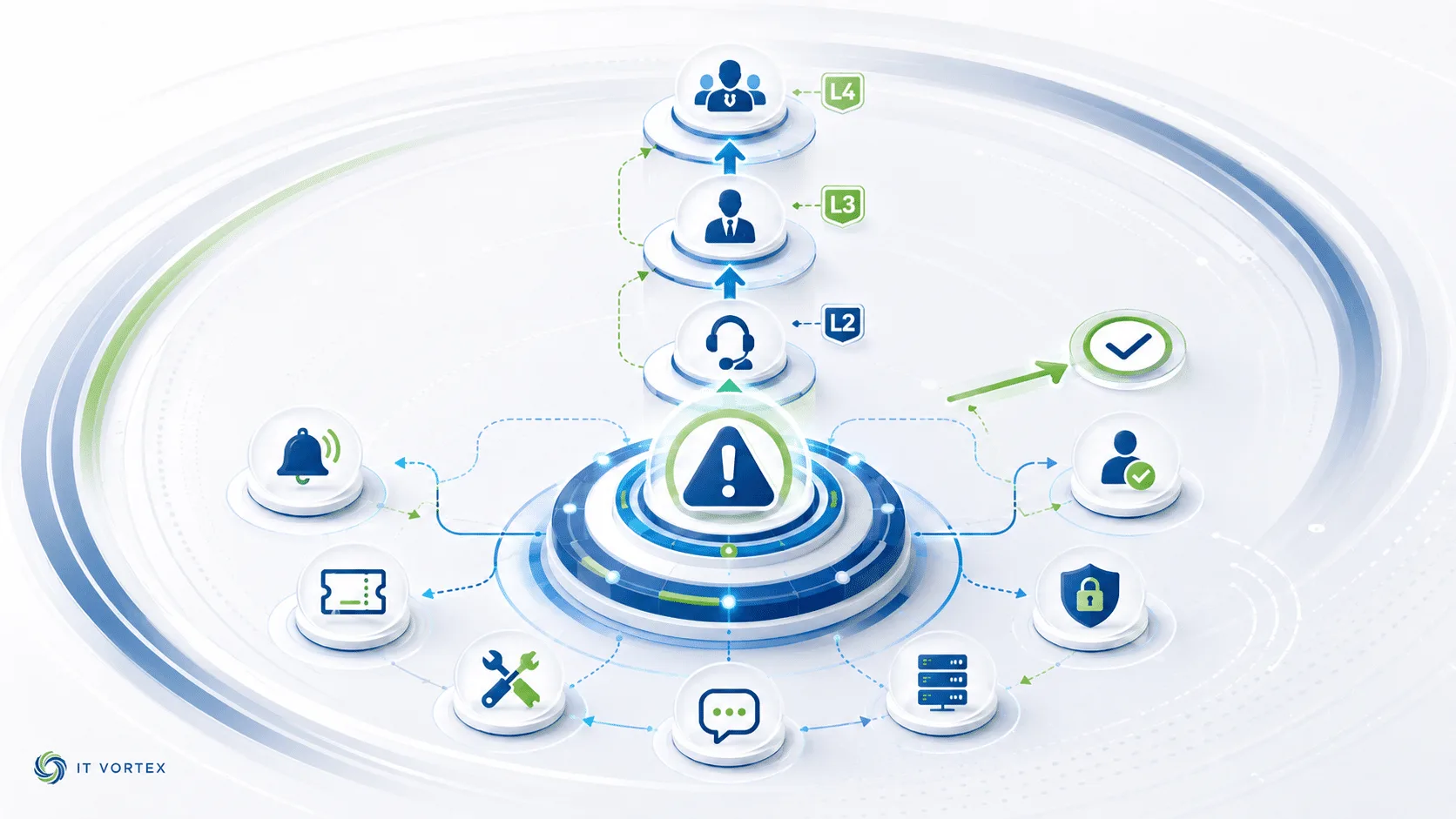
The Five-Step Triage Methodology.
Every article in this KB follows a category-specific triage path. These are the diagnostic sequences our engineers use to move from symptom to resolution efficiently.
When the Article Isn't Enough, Escalate to IT Vortex.
This knowledge base captures the diagnostic steps for our most common operational issues. When a problem requires deeper investigation, vendor escalation, or expert hands-on remediation, IT Vortex managed customers can open a ticket and our engineers take over.
Not yet a managed customer? Our team can scope an engagement around the specific challenges your team is facing.