
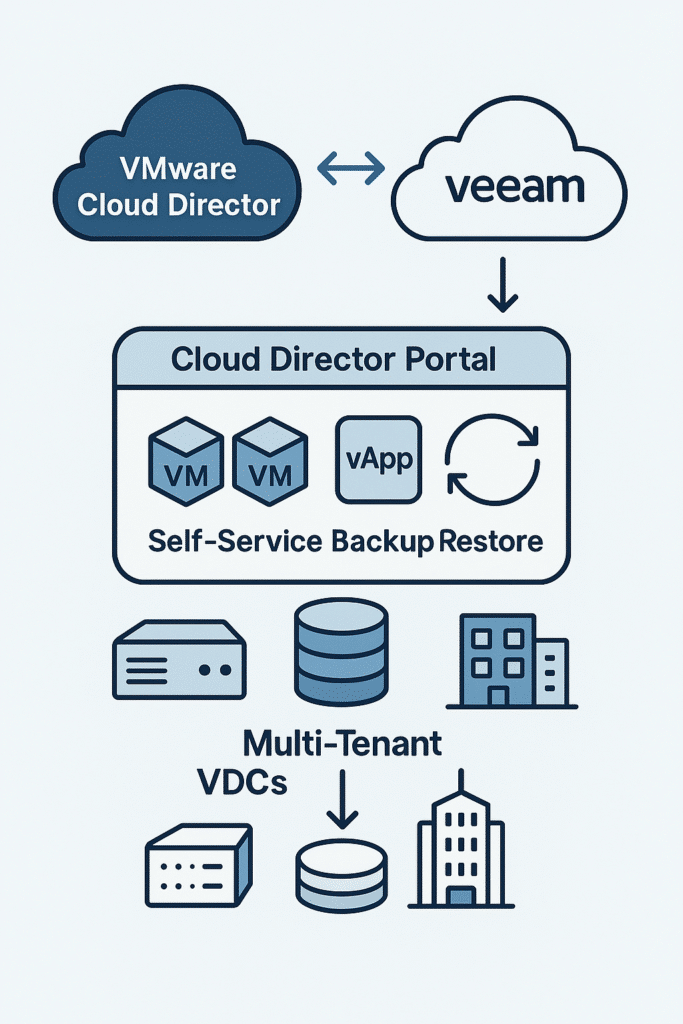
In today’s hybrid-cloud landscape, enterprises are blending on-premises virtualization with hosted services from managed providers. VMware Cloud Director (formerly vCloud Director) enables service providers to deliver secure, multi-tenant virtual data centers (VDCs) to customers, while Veeam Backup & Replication provides proven backup and recovery for VMware workloads.
Integrating the two delivers a powerful, service-provider-grade solution for protecting client workloads and accelerating disaster recovery.
Veeam and Cloud Director Integration
VMware’s extensibility framework allows service providers to expose custom services inside the Cloud Director tenant portal. Veeam’s Cloud Director plug-in, first released in 2021 and continually enhanced, leverages this framework to deliver Cloud Director-aware backup and recovery.
The plug-in supports:
- Full backup and restore operations for virtual machines (VMs), vApps, and guest file systems
- Veeam Cloud Connect replication directly into customer organization VDCs
- Single sign-on (SSO) integration for seamless tenant access
- Self-service backup and restore functionality directly within the Cloud Director portal
This integration empowers providers with service automation and tenants with control and visibility, a win-win for both sides.
Recovery Options in Veeam for Cloud Director
Veeam supports multiple recovery modes within Cloud Director:
Instant Recovery
Boot a VM directly from a backup file in minutes, ideal when downtime must be minimized.
Entire VM Restore
Restore one or more VMs from Cloud Director backups to their original vApps or new locations, perfect for lost, corrupted, or rollback scenarios.
vApp and Item-Level Recovery
Recover entire vApps or individual files using Veeam Explorers.
This article focuses primarily on the Instant Recovery and Entire VM Restore workflows, as they are the most common in disaster-recovery-as-a-service (DRaaS) use cases.
Instant Recovery to a Cloud Director vApp
Instant Recovery dramatically reduces Recovery Time Objectives (RTOs) by allowing VMs to run directly from backup files stored in a Veeam repository.
According to Veeam’s documentation, Instant Recovery utilizes a vPower NFS datastore: Veeam mounts the backup to an ESXi host via NFS and creates an auxiliary storage policy called Veeam-InstantVMRecovery.
This policy is applied to both the provider and tenant organization VDCs, ensuring seamless mapping to Cloud Director’s storage policies.
Step-by-Step: Running Instant Recovery
- Launch the vCloud Instant Recovery Wizard in Veeam Backup & Replication.
- Select the restore point (full or incremental).
- Choose the restore mode: latest state or a specific point in time.
- Specify the destination: vApp, organization VDC, and vApp network.
- Configure Secure Restore (optional) for ransomware/malware scanning.
- Review the summary and finalize the restore operation.
Once complete, Veeam maintains the auxiliary storage policy at the provider VDC level for future recoveries, removing it from the tenant VDC for security.
Administrators can then “finalize” the operation, migrating the VM from temporary to primary storage without downtime.
Restoring Entire VMs to Cloud Director vApps
While Instant Recovery provides immediate access, Entire VM Restore is used when a complete data restoration is required.
Veeam’s wizard guides the process of restoring Cloud Director-aware backups directly back into Cloud Director. You can restore to the original vApp or a new one, overwrite existing VMs, or recover those no longer present.
Key Steps
- Launch Cloud Director Entire VM Restore Wizard
- Select one or more VMs and their restore points
- Choose restore mode (original vs. new location)
- Specify vApp destination, network, and templates (optional)
- Define storage policy, datastore, and Secure Restore options
- Choose whether to overwrite or keep existing VMs
- Finalize and monitor progress
🟢 Tip: Selecting “Restore into vCloud vApp” ensures direct integration with Cloud Director. Choosing “Restore into vSphere” restores only at the vCenter layer, requiring manual import afterward.
Best Practices and Considerations
✅ Verify Prerequisites
Ensure Veeam has privileges to access the Cloud Director provider and organization VDCs. Confirm network connectivity between vCenter, Cloud Director, and ESXi hosts before recovery.
🛡️ Enable Secure Restore
Always scan for malware or ransomware before restoring workloads to avoid reinfection.
⚙️ Plan Storage Policy Propagation
During Instant Recovery, auxiliary storage policies (e.g., Veeam-InstantVMRecovery) must be supported across both provider and tenant VDCs.
🌐 Network Mapping
When restoring to a different organization or vApp, map source networks properly to maintain connectivity.
📄 Document Recovery Procedures
Maintain detailed recovery runbooks and simulate recovery periodically to validate process reliability and ensure team readiness.
Conclusion
The integration of Veeam Backup & Replication with VMware Cloud Director delivers a unified, scalable, and resilient backup and recovery framework.
The Cloud Director plug-in enables self-service, multi-tenant backup and restore operations, while Instant Recovery and Entire VM Restore provide flexibility for both rapid RTOs and full-scale restorations.
By following best practices, verifying prerequisites, using Secure Restore, and planning network/storage mappings service providers and tenants can ensure seamless recovery experiences.
For organizations leveraging VMware Cloud Director and Veeam, this synergy is not just an integration: it’s a cornerstone of a resilient cloud strategy.
Whether you’re a provider delivering DRaaS or a tenant safeguarding mission-critical workloads, these tools ensure you stay protected, compliant, and always ready when downtime strikes.